If you update a label name for either a user group field or a reference data field in the Manage Investigate and Search interface in SAS Visual Investigator, the Detail View and Table View results do not show the updated label name.
For example, you encounter this issue if you complete steps similar to the following:
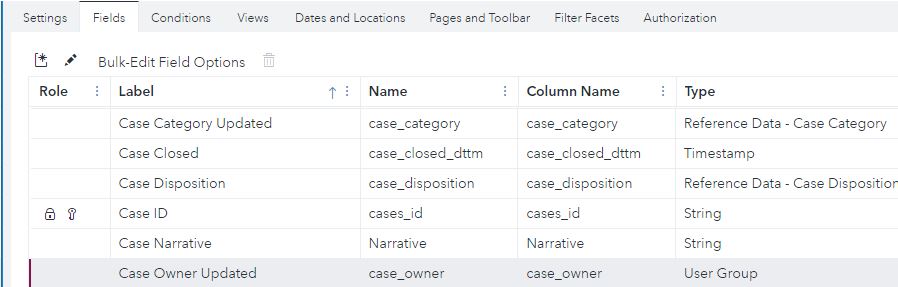
1. Update the label for the case_category field (Reference Data type) and/or for the case_owner field (User Group type) for the Case data object in the Manage Investigate and Search interface as shown here:
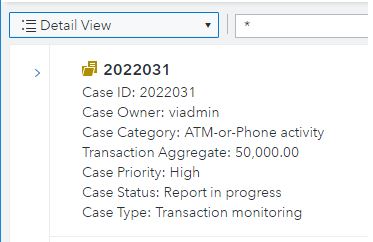
2, View a case Detail View that includes the Case Category and Case Owner fields as shown here on the search results page in SAS Visual Investigator. The label is not updated as shown below:
This issue also occurs for a Table View, where the updated label is not shown for the Case Category and Case Owner fields as shown here on the search results page:

Workaround
Perform the following steps to work around this issue:
- Navigate to the Manage Investigate and Search interface.
- Click the user button, and then select Export configuration (legacy).
- On the Export Configuration screen, click Deselect all.
- Expand SAND and select tm_cases such that only SAND > tm_cases is selected. Note: Your selection might be different. You should select the data object whose label should be updated.
- Click Export.
- After the configuration has been successfully exported, close the Export Configuration screen and open the svi-configurations-mm_dd_yy.zip file. (It is typically located in your Downloads folder. Here is an example C:\Users\sas\Downloads for the SAS user.) Note: This example uses WinZip to open the svi-configurations-mm_dd_yy.zip file and it is therefore referenced in the subsequent workaround steps.
- In WinZip, select svi-sand and open the tm_cases.json file. (Notepad++ is the suggested editor.)
- In the tm_cases.json file, search for the field name(s) that were updated. For example, in this workaround, case_category or case_owner are referenced. Note: The displayName for the field already displays the updated field name, but the innerFields displayName is still shown in the original displayName. Update the displayName for all the innerFields.
- Save the tm_cases.json file.
- Click Update Zip file with changes in the WinZip pop-up window that reads, 'What would you like to do this file?"
- In WinZip, select resources and open the messages.properties file.
- In the messages.properties file, search for field name(s) that were updated. For example, this workaround references case_category or case_owner. As was the case in step 8, the svi.sand.entity.tm_cases.field.<fieldName>.txt already shows the updated label. Example: svi.sand.entity.tm_cases.field.case_category.txt=Case Category Updated. But the svi.sand.entity.tm_cases.field.case_category.code.txt and svi.sand.entity.tm_cases.field.case_category.label.txt do not show the updated label. Ensure that all svi.sand.entity.tm_cases.field.<fieldName>.* have the updated label name.
- Save the messages.properties file.
- Click Update Zip file with changes in the WinZip pop-up window that reads, 'What would you like to do this file?"
- Save the svi-configurations-mm_dd_yy.zip file.
- Navigate to the Manage Investigate and Search interface.
- Click the user button, and then select Import configuration (legacy).
- On the Import Configuration screen, click Choose File, select the svi-configurations-mm_dd_yy.zip file, and then click Open.
- Click Import.
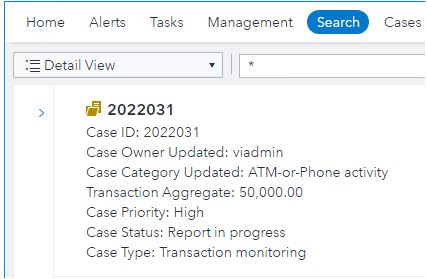
After you successfully complete these steps, a case Detail View shows the updated labels, as shown here on the search results page:
And if you view a case Table View, it also shows the updated labels:
